Assistant
Ask in plain language, get answers from your own numbers
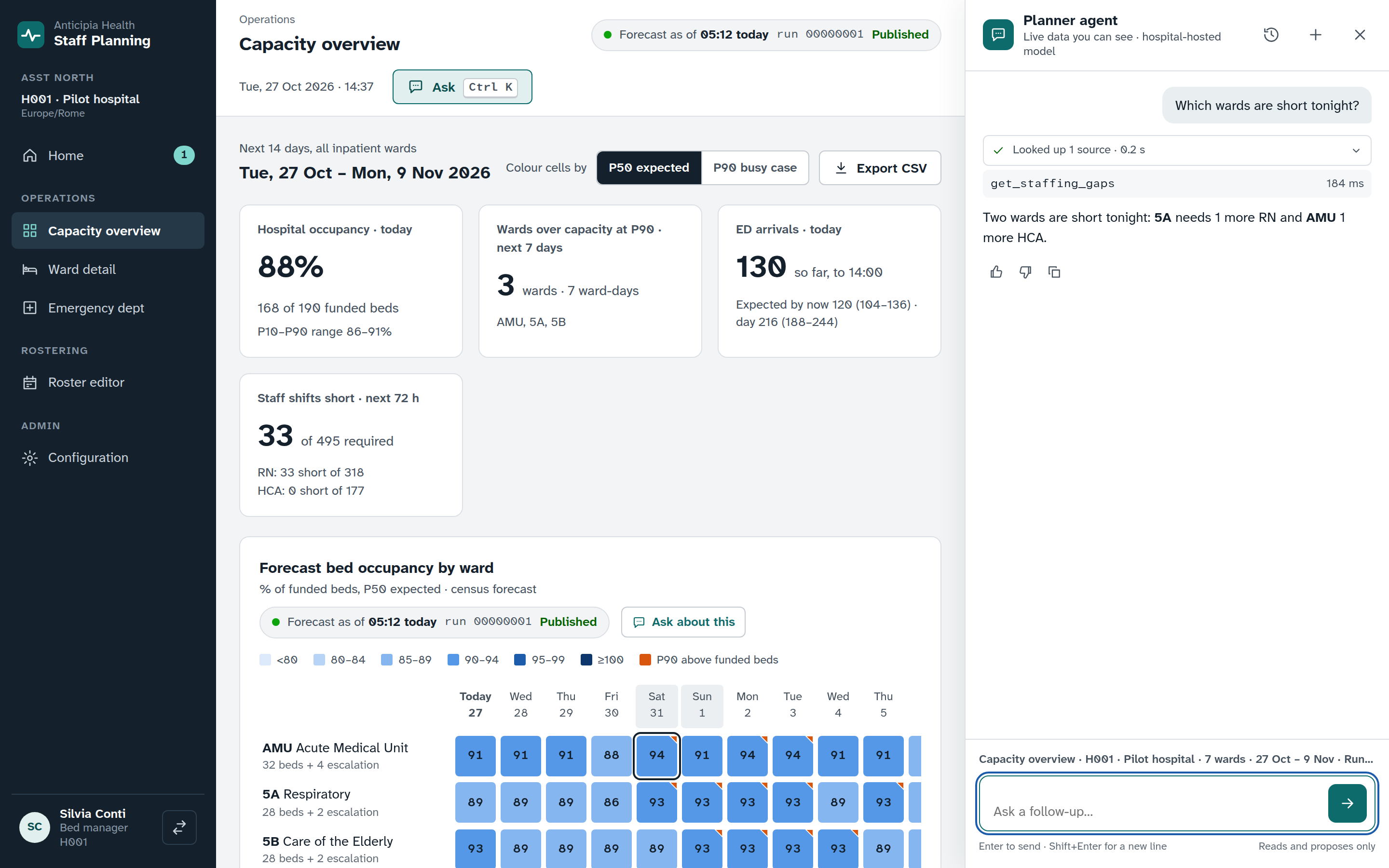
The assistant opens beside any screen. Ask which wards need cover tonight, why a draft carries a penalty, or what the busy case looks like for next week, and it answers from the platform’s own results, with its sources and the time of the data.
From question to decision
Press Ask in the page header, or Ctrl K (⌘K on a Mac), and the drawer opens beside the screen you are on. The screen stays in view while you work.
Ask
Type a question in plain language, pick a suggested question, or reopen an earlier conversation from the history.
Look up
The assistant calls the platform’s own tools, with your login. A tool summary lists each lookup and its status.
Answer
You get text, tables and charts built from the results, with the sources and the time of the data beneath them.
Decide
When a change makes sense, the assistant proposes it. A person opens the screen and applies it.
Answers you can check
Sources on every answer
Each answer names the sources it used, each with its run and the time of its data in the hospital’s own time zone. A tool summary opens to show every lookup, how long it took and whether it succeeded.
When a lookup falls outside your access, the tool summary says so: “You don’t have access to that data.”
Rate and copy answers
Mark an answer Helpful or Not helpful, or copy it. Earlier conversations are listed and reopen with their answers, tables and charts.
Numbers come from tools
Tables and charts take their figures straight from tool results. A model never types a figure into a table or a chart.
Tables built from rows
A table takes its rows and columns from the lookup that returned them, with values exactly as given.
Charts with a table view
A chart is drawn from the rows in the same answer. Every chart has a table view for reading the values.
Long jobs, one card
When a question starts a roster run, a job card shows its status and progress and links to the result for people who may open it.
Ask about this
Charts on the capacity overview, ward detail and emergency department screens carry an Ask about this button. It sends that chart, with whatever you have selected, to the assistant, so it starts from exactly what you are looking at.
On the capacity screens
The capacity heatmap, the ward census chart and staffing table, and the emergency department arrivals and nurses charts each have the button. The asked chart shows a ring and a badge that marks it as part of the assistant’s context.
On the roster
The roster’s run summary has Ask why. It opens the assistant on the same period and optimiser run, with the people you selected already in context.
Context is yours to edit. Each piece of page context appears as a chip, and you can remove any chip before you send.
Your access, never more
Your login, your data
The assistant calls the same API as the screens, signed in as you. It has no role or permissions of its own, so it sees only what you may see.
Reads and proposes
It cannot approve, publish, edit or delete anything. Changes come back as proposals that a person applies in the screens.
Aggregates for patients
Tools return totals and ranges for patient data, never individual records.
Tool results marked untrusted
Tool results reach the model marked as untrusted, and the assistant’s instructions tell it to ignore any instructions inside them. Answers render no images and link only to screens in the app.
Choose where the model runs
A cloud model or a self-hosted one
- Your organisation chooses the language model: a cloud model, or an open model served on your own infrastructure.
- A note in the drawer says where the model is hosted.
- An organisation that must not use cloud models never reaches one, for answers, for embeddings or as a fallback.
- Every stored message records the version of the instructions that produced it.
Same access and rules on every model
Whichever model your organisation chooses, the assistant keeps your access, and the rule checks run in the platform’s own code. The model explains and proposes.
See the assistant working
Book a demo and put your own question to the assistant, on a roster, a forecast or a ward.