Anticipia Rostering
The roster, drafted by an optimiser and decided by you
Anticipia Rostering drafts each ward’s roster against its staffing requirement and your working-time rules, flags every broken rule, cover gap and skill gap as you edit, and takes the roster through approval to publication. The staffing requirement comes from the demand forecasts in Staff Planning.
See it, draft it, decide it
See
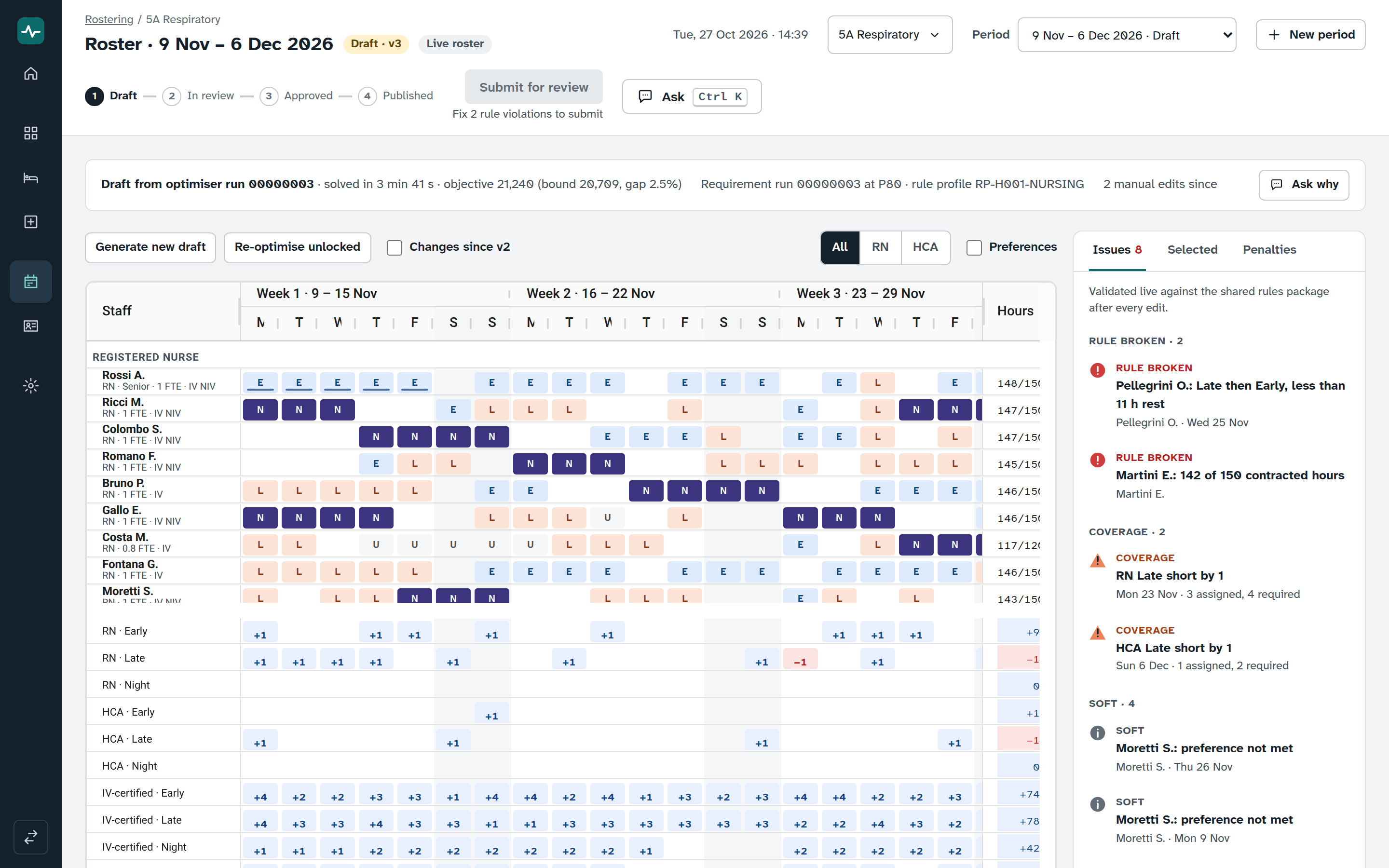
The roster grid lays out a whole period: staff by day, shift codes, absences, locks, preferences and coverage rows, with every rule check beside it.
Draft
The optimiser drafts a roster against the staffing requirement and your working-time rules, or re-optimises around the cells you have locked.
Decide
A roster moves from draft to review, approval and publication. Each step has its own permission, and every change is logged.
The roster grid
A roster period runs for four to six weeks. The grid shows it with people down the side and days across, grouped under calendar weeks, with weekends tinted.
- Staff sit in a section for each role, then the float pool, with name, grade and contract on every row.
- Each cell shows its shift code on the colour of its category, or an absence.
- Locks, preferences, changes since the previous version and broken rules are marked on the cell. Every cell also reads out as a full sentence for screen readers.
- Hours appear beside each person against contract, and are flagged when they run beyond the tolerance your rule profile sets.
- Coverage rows pinned under the grid show assigned minus required for every role and shift, with rows for skills.
- Filter the grid by role, or show preferences as a layer.
Reading a cell
Every shift code takes the colour of its category: night, early or late, worked out from the shift’s times. Your own codes appear as you write them. Absences show their type to people allowed to see it, and U for unavailable to everyone else.
- E Early
- L Late
- N Night
Absences
- T Training
- S Sickness
- A Leave
A lock, a preference, a change since the previous version and a broken rule each have their own marker, so no cell depends on colour alone.
Edit with the rules watching
Select a cell and type a shift code, or press Delete for a day off. The rules run again after every edit.
Rules broken
Rest between shifts, consecutive days and nights, absences and contracted hours are checked in code. A broken rule rings the cell in red and appears as an issue.
Gaps in cover
Coverage rows compare what is assigned with what the requirement asks for, by role and shift. The issues panel lists each gap and how far below the requirement it falls.
Skill gaps
A shift that lacks a skill it requires is listed beside the cover gaps, so a roster can be complete on numbers and still be flagged.
Every problem listed in one place
Issues lists every rule broken, cover gap and skill gap. Each carries a shape, a colour and a label, and selecting an issue about a person jumps to that person’s cell.
Selected shows the person and the day: the shift, the lock, the absence, what changed since the previous version, the rule message and the person’s totals. Set a shift, mark a day off, lock or unlock from here.
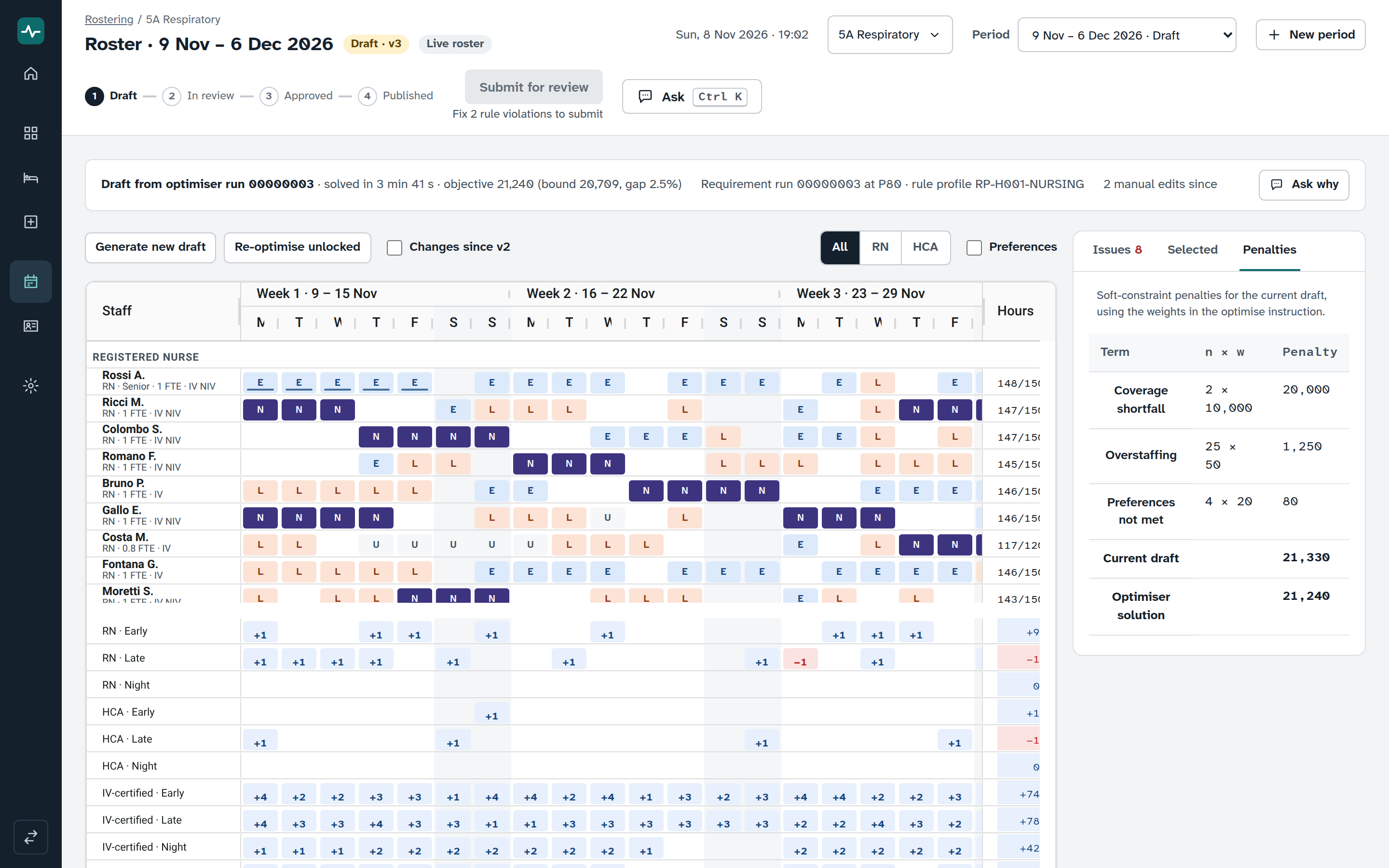
Penalties breaks the draft’s total into its terms, each as a count times a weight.
Every change is visible
“Changes since version” outlines the cells that differ from the previous version. If a roster is in review or approved, an edit first asks whether to return it to draft. If someone else saved first, the editor says so and offers to reload the period.
Draft with the optimiser
Generate a new draft for the period, or re-optimise the unlocked cells and keep every lock. A progress banner follows the run with the elapsed time and the best score so far, and people with the right to cancel can stop it. A run that fails or runs out of time says so.
When a run succeeds, a run summary names the run, how long it took, its score and how far that score could still improve, the staffing requirement it covered and the working-time rules it followed. “Use this draft” copies the result into the period.
Always kept
- One shift per person per day, and no work during an approved absence.
- Minimum rest between shifts, so a late shift never runs into an early one.
- Limits on consecutive days and nights, and rest after a run of nights.
- Contracted hours within the tolerance.
- Only staff who hold a skill count towards a skill requirement.
- Every locked cell, when you re-optimise.
Weighed against each other
- Cover against the staffing requirement, and overstaffing.
- Preferences: want, avoid and day off.
- Fairness of nights, weekends and holidays across people.
- Patterns, such as isolated days on or off and weekends kept together.
- The cost of bank shifts and overtime.
Trade-offs are never hidden: the Penalties tab shows what each weighed rule added to the draft’s total.
From draft to published
Draft
Edit freely. Nothing here is visible to staff.
In review
Submit for review. Submitting is blocked while rules are broken, and the button says how many. Gaps in cover are allowed, with a note.
Approved
A person with the approve permission signs the roster off.
Published
Publishing asks for confirmation, because staff see the roster once it is published.
Edit, optimise, approve and publish are separate permissions, assigned by role and ward. Nothing is published automatically.
Shadow mode
Run Anticipia beside the way you roster today. A period created in shadow mode is drafted, optimised and approved like any other, but it is never published, so staff never see it. It stays on record.
A trail for every change
Each edit, status change and publication is written to the roster’s change log.
People, absences and requests
The staff screen holds the records the optimiser reads: contracts, skills, absences and requests.
Staff records
Search and filter by ward, role, skill or name. The list shows reference, role, grade, contract hours, skills and the next absence, with the headcount and full-time equivalent in post.
Contracts and skills
Each record holds the contract, start date, home ward or float pool, constraints and skills with their validity dates.
Absences and requests
Absences show their type to people allowed to see it, and as unavailable to everyone else. Requests for the current or next period sit on the person’s record, beside an Open in roster link.
CSV import
Check a file first. A dry run lists the problems row by row. Import when it is clean, and the screen reports the counts.
Staffing rules
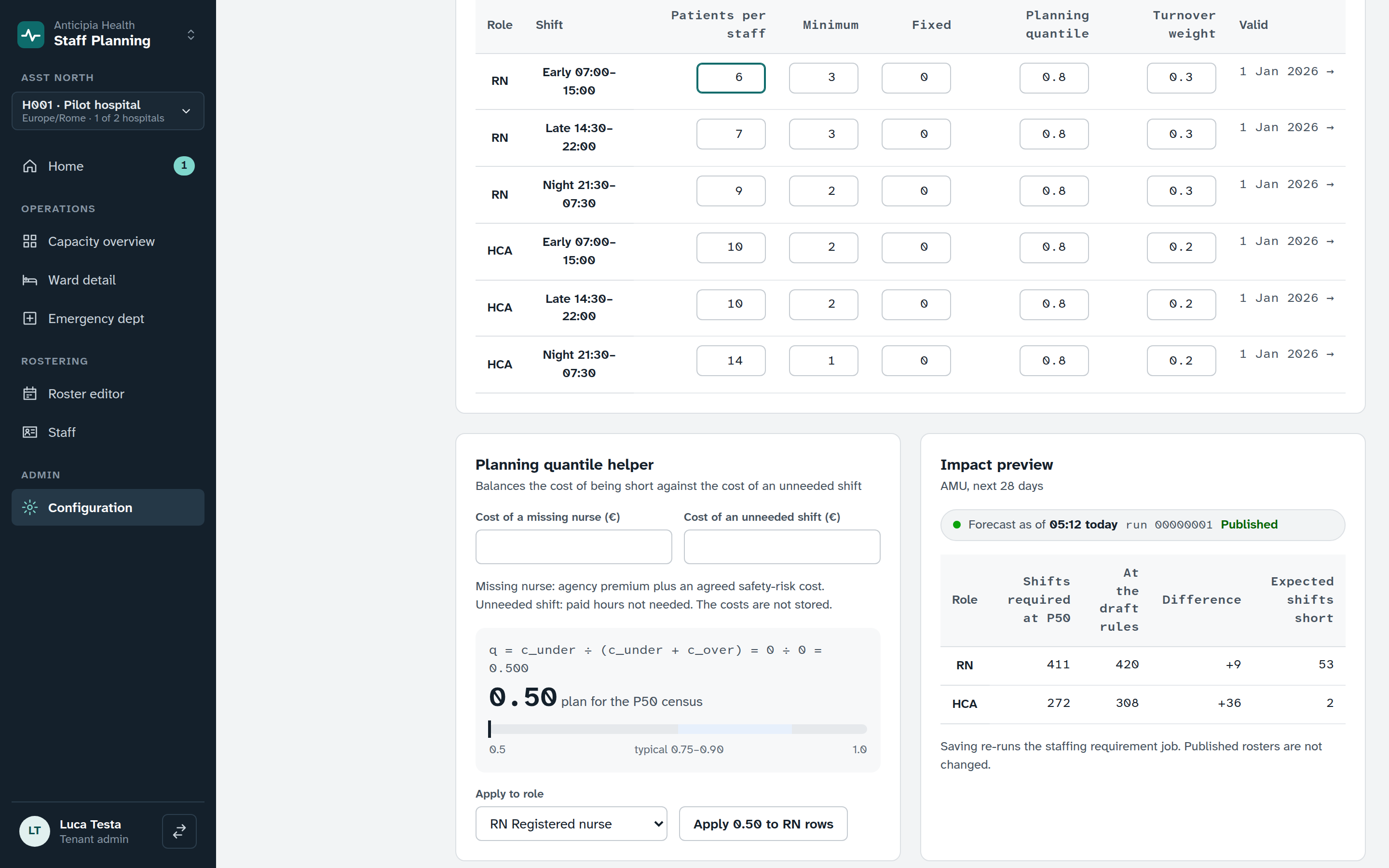
The staffing requirement that rostering covers comes from rules you control. Ratios, minimums and fixed staff are set for each ward, role and shift, as versioned rules with validity dates.
- Pick a date to see the rules in force then. A scheduled-change banner lists what the next version changes.
- Save a change as a new version from a start date. The rules for past days never change.
- The planning-level helper turns the cost of a missing nurse and the cost of an unneeded shift into the level of the census to plan for.
- The impact preview shows, for each role, the staff required at the expected case and under your changed rules, the difference, and the shifts expected to fall short.
Ask why
Every run summary has an Ask why button. It opens the assistant on the same period and run, with the people you selected already in context. The assistant explains from the platform’s own results and names its sources. It reads and proposes; it cannot edit, approve or publish.
See Rostering working
Book a demo and watch a period move from forecast to requirement to draft to approval.